Getting Started
Connecting Your Bank
Curl Budget uses Plaid to securely connect to your bank and import transactions automatically.
How to Connect
- Tap "Add Account" in the app
- Search for your bank - Most major banks are supported
- Log in to your bank - Enter your bank credentials in Plaid's secure window
- Select accounts - Choose which accounts to connect
- Done! - Your transactions will start syncing
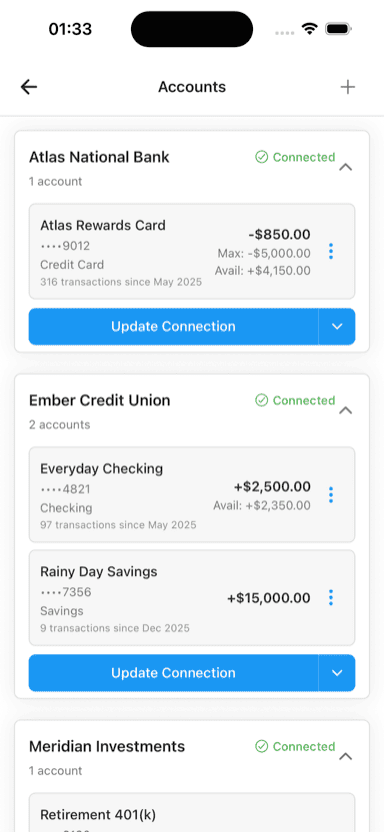
Connected institutions with account balances and status
Security
Your bank credentials are never stored by Curl Budget. Here's how it works:
- Plaid handles authentication - We never see your bank password
- Read-only access - We can only view transactions, not move money
- Bank-level encryption - All data is encrypted in transit and at rest
Learn more about our security practices.
Supported Banks
Curl Budget supports thousands of financial institutions through Plaid, including:
- Major banks (Chase, Bank of America, Wells Fargo, etc.)
- Credit unions
- Credit card companies
- Investment accounts
If you can't find your bank, contact us at hello@curlbudget.com.
Troubleshooting
Connection Issues
If you're having trouble connecting:
- Make sure you're using the correct credentials
- Check if your bank is experiencing issues
- Try reconnecting the account
Transactions Not Syncing
Transactions typically appear within a few hours. If they're not showing:
- Pull down to refresh
- Check if the account connection is healthy
- Reconnect the account if needed
Next Steps
After connecting your bank, check out First Steps to learn how to navigate the app.