Budget Alerts
Budget alerts notify you when your spending approaches or exceeds your limits. These timely notifications help you stay on track without constantly checking your budgets.
How Alerts Work
Curl Budget monitors your budget progress and sends push notifications at key thresholds:
Alert Triggers
You can receive alerts when:
- Approaching limit - You're getting close to your budget (e.g., 80%)
- At limit - You've reached 100% of your budget
- Over budget - You've exceeded your budget limit
Real-Time Monitoring
Alerts are triggered when:
- New transactions sync from your accounts
- You manually add a transaction
- Transactions are recategorized into a budgeted category
Configuring Alerts
Enable/Disable Budget Alerts
- Go to Settings → Notifications
- Find "Budget Alerts"
- Toggle on or off
When enabled, you'll receive alerts for all budgets that cross thresholds.
Threshold Settings
Configure when alerts trigger:
| Threshold | Default | Description |
|---|---|---|
| Warning | 80% | First heads-up that you're approaching the limit |
| Limit Reached | 100% | You've hit your budget exactly |
| Over Budget | 100%+ | Any spending beyond the limit |
Per-Budget Settings
Each budget can have individual alert settings:
- Open the budget to edit
- Find "Alert Settings"
- Configure:
- Enable/disable alerts for this budget
- Custom warning threshold
- Alert frequency preferences
Alert Types
Warning Alert
Trigger: Spending crosses the warning threshold (default 80%)
Message example:
"Dining Out budget is at 85% ($170 of $200)"
Purpose: Gives you time to adjust spending before hitting the limit.
Limit Reached Alert
Trigger: Spending reaches 100% of budget
Message example:
"You've reached your Groceries budget ($600 of $600)"
Purpose: Lets you know you've used your full allocation.
Over Budget Alert
Trigger: Spending exceeds 100% of budget
Message example:
"Entertainment is $25 over budget ($175 of $150)"
Purpose: Immediate notification of overspending.
Spending Rate Alert
Trigger: Your current spending pace projects to exceed your budget by the end of the period — even if you haven't hit the limit yet.
Message example:
"Spending $60 so far projects to $120 (120%) by period end — exceeding your $100 Dining Out budget."
Purpose: Catch overspending trends early so you can adjust before you actually go over.
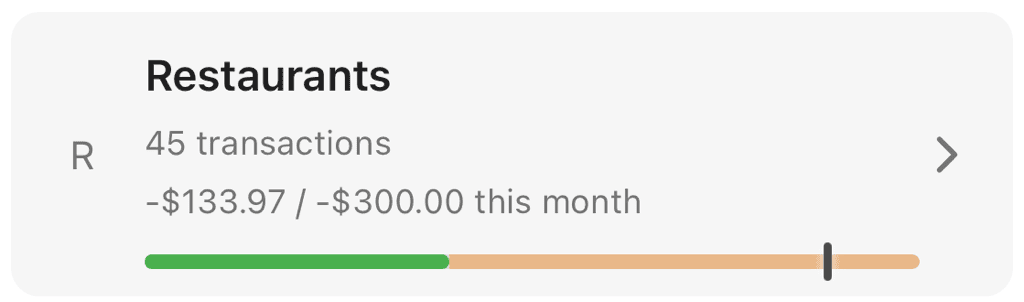
Actual spending (green, $133.97) is well under the $300 limit, but the projected bar (yellow) extends past the budget line — this is the kind of state that triggers a Spending Rate alert.
Sufficient data required: Rate alerts need enough days of spending data to make a meaningful projection. A single high-spend day at the start of the month could otherwise project to wildly over-budget — so rate alerts only fire after roughly the first 20% of the period has elapsed (about a week into a monthly budget). Shorter periods like weekly budgets need at least three days of data.
One alert per period: Like the other alert types, rate alerts fire at most once per budget period. If your projected spending crosses the threshold and then later you exceed the budget for real, the over-budget alert will still fire — they're independent.
Alert Behavior
One Alert Per Threshold
Each threshold triggers only one alert per budget period:
- Reaching 80%: One warning alert
- Reaching 100%: One limit reached alert
- Going over: One over budget alert
You won't receive repeated alerts for the same threshold in the same period.
Period Reset
When a new budget period starts:
- All alert thresholds reset
- You can receive alerts again for the new period
- Previous period alerts don't carry over
Multiple Budgets
If multiple budgets cross thresholds simultaneously (e.g., from a large transaction), you'll receive separate alerts for each budget.
Notification Delivery
Push Notifications
Budget alerts are delivered as push notifications to your device:
- Appear on your lock screen
- Show in notification center
- Tap to open Curl Budget and view the budget
See Push Notifications for more on notification delivery.
In-App Indicators
In addition to push notifications:
- Budget dashboard shows visual warnings (yellow/red colors)
- Individual budgets display their current status
- Budget progress bars reflect threshold states
Best Practices
Set Meaningful Warning Thresholds
The default 80% works well for most budgets, but consider:
Higher threshold (90%) for:
- Small budgets where 80% isn't much runway
- Categories with consistent spending patterns
- Budgets you're confident about
Lower threshold (70%) for:
- Large budgets where early warning helps
- Categories with variable spending
- Budgets you're actively trying to reduce
Don't Ignore Warnings
Warning alerts are opportunities to adjust:
- Review remaining budget
- Check what's coming (known expenses)
- Modify behavior if needed
Review After Over-Budget Alerts
When you go over budget:
- Understand why (unexpected expense? underbudgeted?)
- Decide if the budget needs adjusting
- Consider if spending behavior should change
- Plan for the rest of the period
Use Alongside Daily Allowance
Combine alerts with daily allowance tracking:
- Alerts for threshold moments
- Daily allowance for ongoing pacing
- Together they provide complete awareness
Common Questions
Why didn't I get an alert?
Check that:
- Budget alerts are enabled in Settings → Notifications
- Push notifications are enabled for Curl Budget on your device
- The specific budget has alerts enabled
- You haven't already received an alert for that threshold this period
Can I get alerts more frequently?
Currently, each threshold triggers one alert per period. For ongoing awareness:
- Use the daily allowance feature
- Check your budget dashboard regularly
- Set lower warning thresholds for earlier alerts
Do alerts work for all budget types?
Yes, alerts work for:
- Category budgets (monthly, quarterly, yearly)
- Tag budgets (all periods)
- All budget periods
What about shared workspaces?
- Each member can configure their own alert preferences
- Alerts are sent to individuals based on their settings
- Workspace spending affects all members' budgets
Troubleshooting
Not Receiving Alerts
- Check app settings: Settings → Notifications → Budget Alerts enabled?
- Check device settings: iOS Settings → Curl Budget → Notifications enabled?
- Check individual budget: Does the specific budget have alerts enabled?
- Check threshold: Has the threshold been crossed this period?
Too Many Alerts
- Adjust thresholds: Raise warning thresholds to reduce early alerts
- Disable for specific budgets: Turn off alerts for budgets you don't need to monitor closely
- Use digest mode: Switch to daily digest for less frequent notifications
Delayed Alerts
Alerts trigger when transactions sync. If transactions are delayed from your bank, alerts will also be delayed. This is normal—alerts arrive when Curl Budget learns about the spending.
Related Features
- Creating Budgets - Set up budgets to track
- Push Notifications - How notifications work
- Notification Settings - Configure all notifications
- Budget Periods - Understand when alerts reset