Creating Budgets
Curl Budget lets you create budgets based on categories or tags. This guide walks you through setting up budgets that match your financial goals.
Before You Start
Review Your Spending
Before setting budget amounts, understand your current spending:
- Check the Explorer for spending by category
- Look at the last 2-3 months to find typical amounts
- Note which categories vary month-to-month
Setting budgets based on actual spending (rather than wishful thinking) leads to better results.
Organize Your Categories
Budgets work best with well-organized categories:
- Make sure transactions are categorized correctly
- Set up any subcategories you need
- Consider which level to budget at (parent or child)
Creating a Category Budget
Category budgets track spending for a specific category and its subcategories.
Step by Step
- Go to the Budgets tab
- Tap "Add Budget"
- Select "Category Budget"
- Choose the category
- Enter the budget amount
- Select the period (monthly, quarterly, yearly)
- Save
Choosing the Right Category
Budget at parent level when:
- You want flexibility within subcategories
- Overall spending is what matters
- Example: $800/month for "Food & Dining" (includes all dining/groceries)
Budget at child level when:
- You want specific limits on subcategories
- One area needs more control than others
- Example: $200/month specifically for "Restaurants"
Multiple Category Budgets
You can have budgets on both parent and child categories:
- Parent: $800/month for "Food & Dining"
- Child: $200/month for "Restaurants"
- Child: $400/month for "Groceries"
Each tracks independently. Spending at "Restaurants" counts toward both the Restaurants budget AND the Food & Dining budget.
Creating a Tag Budget
Tag budgets track spending for transactions with a specific tag, regardless of category.
Step by Step
- Go to the Budgets tab
- Tap "Add Budget"
- Select "Tag Budget"
- Choose the tag (or create a new one)
- Enter the budget amount
- Select the period
- Save
When to Use Tag Budgets
Tag budgets are ideal for cross-category tracking:
- Projects: "Home Renovation" budget tracks all renovation spending (supplies, labor, materials)
- People: "Shared Expenses" budget tracks all spending you split with someone
- Goals: "Wedding Fund" budget tracks all wedding-related purchases
- Tax purposes: "Business Expense" budget tracks deductible spending
Setting Up Tags First
Before creating a tag budget:
- Create the tag in Settings → Tags
- Apply the tag to relevant transactions (manually or via Auto-Rules)
- Create the budget
The budget will track all transactions with that tag going forward, plus any existing tagged transactions.
Quick-Create from Explorer or Reports
If you're browsing your spending and notice a category that should have a budget, you can create one on the spot—no need to navigate to the Budgets tab.
From Explorer
When viewing spending grouped by category, unbudgeted categories with transaction history show your average monthly spending and data confidence as text beneath the total amount. This gives you an at-a-glance sense of typical spending before you commit to a budget.
To create a budget from Explorer:
- Group by category in Explorer
- Long-press on an unbudgeted category
- Tap "Create Budget" in the action menu
- The budget amount is pre-filled with your average monthly spending
- Adjust the amount and period if needed, then save
The suggested amount is calculated from your historical spending in the current date range, divided by the number of months with data. Only expense transactions are included—transfers, duplicates, and income are excluded.
From Cash Flow Report
When you've filtered the Cash Flow report to a single category that doesn't have a budget, a "Create Budget" button appears in the chart header.
- Filter Cash Flow to a single category (e.g., via Explorer drill-down)
- Tap "Create Budget" in the Cash Flow card header
- The amount is pre-filled based on your spending history
- Adjust and save
When Quick-Create Appears
The "Create Budget" option only appears when:
- You're viewing spending by category (not by merchant, tag, or month)
- The category doesn't already have a budget
- There's transaction history to base the suggestion on
Once you save, the spending indicator in Explorer is replaced with a full budget progress bar, and the category immediately starts tracking against your new limit.
Setting Budget Amounts
Based on Past Spending
- View category/tag spending in Explorer for the last 3 months
- Calculate the average
- Set the budget at or slightly below average if you want to reduce spending
- Set at average if you just want to track
Based on Income
- Start with your monthly income
- Allocate percentages to categories:
- Housing: 25-35%
- Food: 10-15%
- Transportation: 10-15%
- Savings: 10-20%
- Everything else: remaining
Based on Goals
- Determine your target spending
- Set budgets at target amounts
- Track how close you get
- Adjust over time
Leave Room for Reality
- Set limits slightly above minimum needs
- Allow for occasional overages
- Budget for annual/irregular expenses
Choosing a Period
Monthly
Best for:
- Regular recurring expenses
- Day-to-day spending categories
- Most household budgets
Examples:
- Groceries: $600/month
- Entertainment: $150/month
- Dining Out: $200/month
Quarterly
Best for:
- Expenses that don't occur monthly
- Subscriptions billed quarterly
- Seasonal spending
Examples:
- Clothing: $300/quarter
- Gifts: $200/quarter
- Home Maintenance: $500/quarter
Yearly
Best for:
- Annual expenses
- Savings goals
- Large purchase planning
Examples:
- Vacation: $3,000/year
- Holiday Gifts: $500/year
- Car Maintenance: $1,200/year
See Budget Periods for more details on how periods work.
Editing Budgets
Changing the Amount
- Tap the budget to edit
- Modify the amount
- Save
Changes apply immediately. Your progress percentage will update based on the new amount.
Changing the Period
- Tap the budget to edit
- Select a new period
- Save
The budget resets to the new period. Historical data is preserved for reporting.
Deleting a Budget
- Tap the budget to edit
- Tap "Delete Budget"
- Confirm
Deleting a budget doesn't affect your transactions—they keep their categories and tags.
Budget Dashboard
After creating budgets, the Budgets tab shows:
Progress Overview
- Progress bars - Visual spending progress
- Spent / Limit - Dollar amounts
- Percentage - How much of budget is used
- Color coding:
- Green: Under 80%
- Yellow: 80-100%
- Red: Over 100%
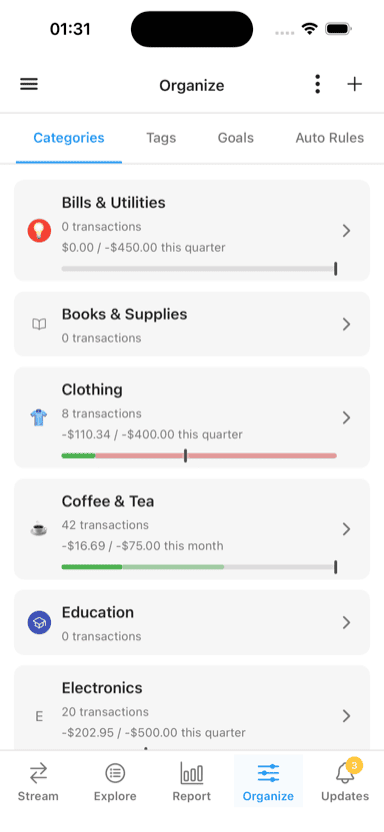
Categories with color-coded budget progress bars
Daily Allowance
For each budget, see:
- How many days remain in the period
- How much you can spend per day
- Whether you're on pace
Period Info
- Current period dates
- Days elapsed and remaining
- When the budget resets
Tips for Success
Start Small
Begin with 2-3 budgets for your biggest spending areas. Add more once you're comfortable.
Be Realistic
Set achievable limits based on actual spending, not aspirations. You can always tighten limits later.
Review Weekly
Check your budgets regularly:
- Sunday evening review
- Quick daily check
- Adjust spending behavior if needed
Adjust Quarterly
Every few months:
- Review budget accuracy
- Adjust limits up or down
- Add or remove budgets
- Refine categories
Use Alerts
Set up budget alerts to get notified before you overspend.
Common Issues
Transactions Missing from Budget
Check that:
- Transaction is in the right category (for category budgets)
- Transaction has the tag (for tag budgets)
- Transaction is within the budget period
- Transaction isn't a transfer or duplicate
Budget Seems Too High/Low
Verify:
- The budget period matches your expectation
- Subcategories are included (for parent budgets)
- No unexpected transactions are categorized there
Budget Resets Unexpectedly
Budgets reset at the start of each period:
- Monthly: 1st of each month
- Quarterly: Jan 1, Apr 1, Jul 1, Oct 1
- Yearly: January 1
This is expected behavior—check your period setting if it seems wrong.
Related Features
- Categories - Organize transactions for budgeting
- Tags - Flexible tracking for tag budgets
- Budget Periods - Understand period options
- Budget Alerts - Get notified about your progress
- Implied Budgets - How filters affect budgets