Spread Transactions
Some expenses don't fit neatly into a single month. Annual insurance premiums, quarterly subscriptions, and large one-time purchases can throw off your monthly budget tracking. Spread transactions solve this by distributing a transaction's amount across multiple months, giving you a more accurate picture of your actual spending patterns.
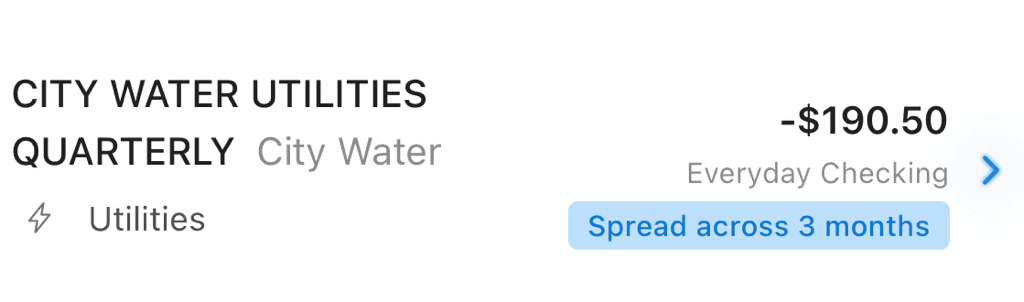
A quarterly water bill spread across 3 months for smoother budget tracking
Why Spread Transactions?
Consider these common scenarios:
- Annual insurance: You pay $1,200 in January for car insurance. Without spreading, January looks $1,200 over budget while other months look artificially low.
- Quarterly bonus: You receive a $3,000 bonus in March, but you earned it over three months. Without spreading, March shows inflated income.
- Large purchase: You buy a $600 appliance. Rather than blowing one month's budget, you want to see this as $100/month over 6 months.
Spread transactions let you distribute these amounts across the months they actually represent, making your budget tracking more meaningful.
Spread Directions
Spread After (Forward)
Distributes the transaction amount to future months, starting from the transaction date.
Use for: Prepaid expenses that cover future periods.
Example: $1,200 annual insurance paid on January 15
- Without spreading: $1,200 expense in January
- With spread after (12 months): $100 expense each month, January through December
Spread Before (Backward)
Distributes the transaction amount to prior months, ending at the transaction date.
Use for: Income or expenses that were earned/accrued over a prior period.
Example: $3,000 quarterly bonus received on March 31
- Without spreading: $3,000 income in March
- With spread before (3 months): $1,000 income each month, January through March
Creating Spread Rules
Spread rules are created in the Organize tab under Auto Rules. When creating or editing a rule:
- Scroll to the Spread Configuration section
- Enable the "Enable Transaction Spreading" toggle
- Choose your mode and configure the spread
Mode Selection
Recurring
- Matches transactions using rule conditions (merchant name, amount, category, etc.)
- Best for repeating charges like quarterly bills or annual subscriptions
- The same spread settings apply to every matching transaction
One-Time
- Targets a specific transaction you select
- Best for one-time purchases you want to amortize
- Spread period is defined by explicit dates you set
Recurring Spread Settings
| Setting | Description |
|---|---|
| Direction | Spread After (forward) or Spread Before (backward) |
| Frequency | Monthly, Yearly, or Custom |
| Period | Number of months to spread across (1-120) |
| Start Date | Optional: When the rule becomes active |
| End Date | Optional: When the rule stops matching |
Examples:
- Quarterly (3 months): Spreads each matched transaction across 3 months
- Annual (12 months): Spreads each matched transaction across 12 months
- Custom: Any period from 1-120 months
One-Time Spread Settings
| Setting | Description |
|---|---|
| Transaction | The specific transaction to spread |
| Direction | Spread After or Spread Before |
| Start Date | Required for Spread Before: where the backward spread begins |
| End Date | Required for Spread After: where the forward spread ends |
Example: Spread a $5,000 car repair from January 1 to June 30
- Select the transaction
- Choose "Spread After"
- Set End Date to June 30
- Result: ~$833 expense each month, January through June
Viewing Spread-Adjusted Amounts
In Explorer
When grouping transactions by month, a toggle appears:
- "Spread adjusted": Shows amounts with spreading applied (default)
- "Spread off": Shows original transaction amounts
When spread adjustment is enabled:
- Source transactions are excluded from their original month
- Spread amounts appear in each month of the spread period
- A badge showing "X spread" (e.g., "2 spread") indicates how many spread transactions contribute to that month's total
In the transaction list, spread transactions show a "Spread across X months" badge.
Tap the ? icon next to the toggle to see the "Understanding Spread Adjustment" help modal.
In Cash Flow Report
When you have spread rules, a "Series" button appears:
| Option | What it shows |
|---|---|
| Actual | Solid lines only — original transaction amounts |
| Spread Adjusted | Dashed lines only — distributed amounts |
| Both | Both solid and dashed lines for comparison (default) |
This lets you compare your actual cash flow (when money moved) against your spread-adjusted view (when expenses/income were "earned").
Budget line behavior:
The budget line calculation matches your selected series mode:
- Actual or Both: Budget reflects actual transaction amounts
- Spread Adjusted: Budget reflects spread-adjusted amounts
This ensures the budget line is always comparable to the primary data series you're viewing. In "Both" mode, the budget aligns with the solid (actual) lines since those represent the primary reference.
How Spread Amounts are Calculated
The formula is straightforward:
Amount per month = Transaction amount ÷ Number of months in spread periodMonth Counting
- Spread After: Transaction month is the FIRST month, counts forward
- Spread Before: Transaction month is the LAST month, counts backward
- One-Time: Counts all months between start and end dates (inclusive)
Example Calculation
$1,200 quarterly insurance with Spread After (3 months):
- Transaction: January 15, -$1,200
- Spread period: January, February, March (3 months)
- Amount per month: -$1,200 ÷ 3 = -$400
Result: -$400 appears in January, -$400 in February, -$400 in March
Projected Transactions
For recurring Spread Before rules only, the system can project expected future transactions before they actually occur. This helps you see anticipated expenses in your budget.
When Projections Appear
Projections appear when ALL of these conditions are met:
- The rule is recurring (not one-time)
- The direction is Spread Before
- The system can determine the next expected date:
- From prior matched transactions (next = last match + one period), OR
- From the rule's Start Date (first expected transaction date)
- The projected date is not in the future (current month or earlier)
- The projected date is before the rule's End Date (if set)
Projection Behavior
- Projections continue for one missed transaction — if you expect a quarterly bill and it's one period overdue, the projection still appears
- Projection amounts use either:
- The rule's Expected Amount (if configured), OR
- The average of all previously matched transactions
- If neither exists, no projection is generated
Example
You have a quarterly insurance rule (Spread Before, 3 months) with Start Date January 15:
- January: Projection appears showing expected $400/month spread
- January 15: Actual transaction posts, replaces projection
- April: New projection appears for next quarter
Projections and Filtering
When you apply a filter (by category, recipient, account, etc.) to cash flow or Explorer views, projected spread amounts only appear if at least one actual matched transaction passes the filter.
Why? Projections are based on the pattern of actual transactions. If you're filtering to see only "Groceries" expenses, showing projected "Salary" income would be misleading—those projections aren't relevant to the filtered view.
Example:
- You have a Spread Before rule for monthly salary deposits
- No salary transactions exist in the current month (only a projection)
- You filter the cash flow view by "Utilities" category
- Result: The salary projection won't appear because no actual salary transactions match the "Utilities" filter
When this affects you:
- If you see projected income disappear when applying a filter, this is expected behavior
- To see all projections, remove the filter or filter to a category that includes actual spread source transactions
Amount Alerts
Optionally, you can configure alerts when matched transactions differ from expected amounts:
| Setting | Description |
|---|---|
| Expected Amount | The amount you expect this transaction to be |
| Alert Threshold | Percentage variance that triggers an alert (0-100%) |
If |actual - expected| ÷ expected > threshold, you'll be alerted.
Example: Expected $100, threshold 10%
- $105 transaction: 5% variance, no alert
- $115 transaction: 15% variance, alert triggered
Technical Notes
Date Handling
All spread calculations use UTC to ensure consistent behavior across timezones. This prevents off-by-one errors that could occur with local date handling.
Match Recalculation
When you create or update a spread rule, matches are recalculated for all applicable transactions. During this brief recalculation, you may momentarily see zero matches before the new matches appear.
Deleted Transactions
If a source transaction is deleted, its spread match record remains. Spread amounts may still appear in reports until the match is cleaned up.
Integration with Budgets
When spread adjustment is enabled:
- Source transactions are excluded from base budget calculations
- Spread amounts are added back in their distributed months
- Transactions within a query range but with spread periods entirely outside are still excluded to prevent double-counting
Related Features
- Creating Budgets — Set up budgets that work with spread transactions
- Budget Periods — Understand how periods interact with spreading
- Cash Flow Report — View spread-adjusted amounts in reports
- Auto Rules — Create rules that match and spread transactions