Auto-Rules
Auto-Rules let you define conditions and actions that apply to transactions automatically. Set up a rule once, and every matching transaction—past and future—is handled the way you want.
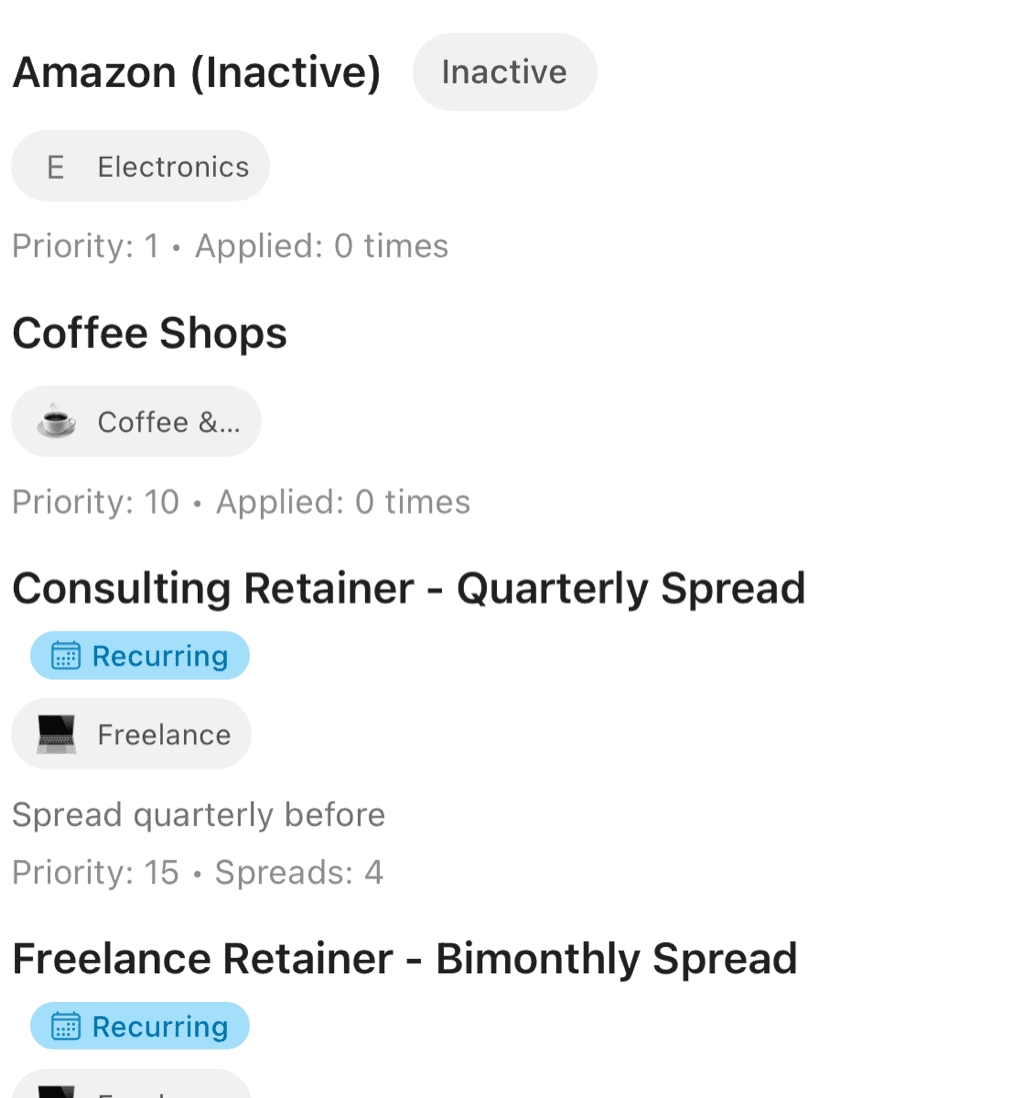
Rules with category assignments, priority order, and status indicators
Why Use Auto-Rules?
Auto-Rules save time and ensure consistency:
- Fix recurring miscategorizations - If the AI always puts your gym membership in the wrong category, create a rule to fix it
- Automate tagging - Automatically tag business expenses, shared costs, or project spending
- Customize descriptions - Add notes or clean up merchant names automatically
- Control transfer detection - Explicitly mark certain transactions as transfers or non-transfers
How Rules Work
Each rule has three parts:
1. Conditions
Conditions define which transactions the rule matches. You can combine multiple conditions with AND/OR logic.
2. Actions
Actions define what happens to matching transactions. A single rule can perform multiple actions.
3. Priority
Rules are evaluated in priority order. Higher-priority rules are checked first, and some actions may prevent lower-priority rules from applying.
Creating a Rule
- Go to Settings → Auto-Rules
- Tap "Add Rule"
- Give the rule a descriptive name
- Add conditions (see below)
- Add actions (see below)
- Save
Naming Your Rule
Use descriptive names that explain what the rule does:
- ✅ "Categorize Spotify as Subscriptions"
- ✅ "Tag all Home Depot as Home Improvement"
- ❌ "Rule 1"
- ❌ "Fix stuff"
Good names make rules easier to manage as your list grows.
Quick Rule Creation from Transactions
The fastest way to create a rule is directly from a transaction that matches what you want to automate.
How to Create
- Find a transaction you want to create a rule for
- Long-press the transaction
- Select "Create Auto Rule"
- The rule editor opens with conditions pre-filled
What Gets Pre-filled
- Merchant name - Matches the transaction's merchant
- Description - May include relevant description patterns
You then add your desired actions (set category, add tags, etc.) and save.
When to Use
Just miscategorized something: If you notice a transaction that's consistently categorized wrong, long-press it and create a rule. It's faster than manually navigating to Settings → Auto-Rules → New Rule.
Seeing a pattern: When you spot a recurring merchant that needs specific handling (tagging, categorization), create the rule right from that transaction.
Learning from corrections: After manually fixing a transaction, consider whether future transactions from the same merchant need the same treatment.
After Creating
You'll be prompted to:
- Apply to existing - Run the rule on all matching historical transactions
- Future only - Only apply to new transactions going forward
Choose based on whether you want to backfill or start fresh.
Condition Types
A rule can match against any of these condition fields. String fields support contains / equals / matches-pattern operators; numeric and date fields support equals / greater-than / less-than / between; account / category / tag fields support set-membership operators.
Merchant Name
The merchant or payee name as displayed in Curl Budget (after any normalization).
- Contains — name includes the given text (e.g., "STARBUCKS")
- Equals — exact match
- Matches pattern — regular expression for complex matching
Example: Merchant contains "NETFLIX" matches "NETFLIX.COM" and "NETFLIX INC".
Description
The transaction description as displayed in Curl Budget — typically the descriptive line you see on the transaction list.
- Contains — description includes text
- Equals — exact match
- Matches pattern — regular expression
Useful for transactions where the merchant name is unclear but the description is informative.
Original Description
The raw description string the bank or data provider sent before any normalization. Use this when banks send a stable raw string but the displayed description varies.
- Same operators as Description
- Helpful when you want a rule to keep matching even if Curl's displayed description changes
Recipient
A virtual field that is the merchant name when present, falling back to the description otherwise. Match recipient when you want the rule to fire whether the bank populated merchant or only description.
- Same operators as Description and Merchant Name
- Equivalent to "merchant OR description" without writing it as an OR
Receipt OCR Text
Match against text extracted from any receipt attached to the transaction (via OCR). Useful for finding line items from large purchases or matching specific store receipts.
- Same operators as other string fields
- Requires that a receipt was captured for the transaction
Amount
Match by transaction amount.
- Equals — exact amount (e.g., exactly $9.99)
- Greater than — above a threshold
- Less than — below a threshold
- Between — within a range
- Sign filter — restrict to expenses (negative), income (positive), or compare absolute magnitude
Remember: expenses are negative, income is positive.
- "Amount less than -100" means "expenses over $100"
- "Amount greater than 0" means "income"
Date
Match by the calendar date of the transaction.
- After — after a specific date
- Before — before a specific date
- Between — within a date range
- Equals — exact date match
Useful for temporary rules or historical corrections.
Day of Month
Match by the day-of-the-month (1–31) the transaction posts on, regardless of the calendar month.
- Is one of — match any of a list of days (e.g., 1, 15)
Useful for recurring statement-day rules — "every transaction on the 1st or 15th from this account is payroll" — or for catching monthly bills that hit on the same day every month.
Account
Match transactions from specific accounts.
- Equals — from a specific account
- Any of — from any of several accounts
Useful for rules like "all transactions from my business card → Tag 'Business Expense'".
Category
Match transactions already in a category by category ID.
- Equals — specific category
- Any of — multiple categories
- Is uncategorized — no category assigned
Useful for adding tags based on existing categorization, or sweeping uncategorized transactions into a default.
Tags
Match transactions with specific tags.
- Any of — has at least one of these tags
- All of — has all of these tags
- None of — has none of these tags
Useful for rules that build on previous tagging.
Combining Conditions
AND Logic
All conditions must match:
Merchant contains "UBER" AND Amount less than -50Matches Uber rides over $50.
OR Logic
Any condition can match:
Merchant contains "LYFT" OR Merchant contains "UBER"Matches transactions from either rideshare service.
Complex Logic
Combine AND and OR for sophisticated matching:
(Merchant contains "AMAZON" OR Merchant contains "AMZN")
AND Amount less than -100
Matches large Amazon purchases regardless of how Amazon appears in the name.
Action Types
A single rule can configure any combination of the actions below. Tag add/remove conflicts and transfer detection/exclusion conflicts are validated at save time.
Assign Category
Assign a specific category to matching transactions, or clear the category (uncategorize).
- Overrides AI auto-categorization
- Overrides previous manual categorization (unless "Skip if already categorized" is set)
- Setting
nullremoves the category from matching transactions
Add Tags
Add one or more tags to matching transactions.
- Adds to existing tags (does not remove anything)
- Skips tags that are already present
- Cannot overlap with the Remove Tags action on the same rule
Remove Tags
Remove one or more tags from matching transactions.
- Useful for cleanup rules: "if a transaction is tagged 'review-me' and now has a category, remove the 'review-me' tag"
- Cannot overlap with the Add Tags action on the same rule
Modify Description
Update the displayed transaction description.
- Overwrite — replace the description with the given value
- Append — add text to the end of the existing description (with optional skip-if-already-present)
Modify Merchant Name
Update the displayed merchant name.
- Overwrite — replace the merchant name with the given value
- Append — add text to the end (with optional skip-if-already-present)
- The original bank-provided merchant name is preserved in Original Description and remains matchable
Modify Note
Update the transaction's user note field.
- Overwrite — replace the note
- Append — add to the end (with optional skip-if-already-present, useful for stamping context without duplicating)
Transfer Detection
Mark matching transactions as transfers between your own accounts. See Transfer Detection for how this affects budgets and reports. Mutually exclusive with Transfer Exclusion on the same rule.
Transfer Exclusion
Mark matching transactions as definitively NOT transfers. Useful when transfer-detection heuristics misfire on a specific merchant or pattern. Mutually exclusive with Transfer Detection on the same rule.
Mark as Reviewed
Flag matching transactions as reviewed (clears the "needs review" indicator). Useful for sweeping rules that handle a known-correct pattern at scale.
Mark as Return
Flag matching transactions as returns/refunds rather than fresh income. Curl Budget will pair them with the original purchase for accurate spending totals — the refund offsets the expense rather than counting as new income. Mutually exclusive with Mark as Return Adjustment on the same rule.
Mark as Return Adjustment
Flag matching transactions as the adjustment side of a return (for example, a credit card statement adjustment that posts alongside the refund). Used when the bank splits a refund into a separate adjustment line item. Mutually exclusive with Mark as Return on the same rule.
Rule Options
Skip If Category Exists
When enabled, the rule won't change the category if one is already assigned. Useful when you want to fix only uncategorized transactions.
Apply to Existing Transactions
When creating or editing a rule:
- Apply now - Immediately apply to all matching transactions
- Future only - Only apply to new transactions going forward
Dry Run Preview
Before applying a rule, you can preview:
- How many transactions match
- Sample matching transactions
- What changes would be made
This helps catch overly broad rules before they cause problems.
Rule Priority
Rules are evaluated in order. You can drag rules to reorder them.
Why Priority Matters
If multiple rules could match a transaction:
- Higher-priority rules are evaluated first
- Some actions (like "Set Category") may only apply from the first matching rule
- Other actions (like "Add Tag") can apply from multiple rules
Example Priority
- "All transactions from Business Card → Tag 'Business'" (specific account rule)
- "Uber over $50 → Tag 'Large Expense'" (specific merchant + amount)
- "All Uber → Category: Transportation" (general merchant rule)
A $75 Uber charge on your business card would:
- Get tag "Business" (rule 1)
- Get tag "Large Expense" (rule 2)
- Get category "Transportation" (rule 3)
Managing Rules
Viewing All Rules
Settings → Auto-Rules shows:
- All rules in priority order
- Enable/disable toggle for each
- Match count (how many transactions currently match)
Editing a Rule
Tap any rule to:
- Modify conditions or actions
- Re-apply to existing transactions
- Test with dry run
Disabling a Rule
Toggle a rule off to:
- Stop it from applying to new transactions
- Keep the rule for later without deleting it
- Troubleshoot rule conflicts
Deleting a Rule
Swipe or tap delete to remove a rule. This doesn't undo changes already made to transactions.
Running Rules Manually
Rules automatically apply to new transactions as they sync. You can also manually run rules on demand.
Running a Single Rule
Apply one specific rule to all matching transactions:
- Go to Settings → Auto-Rules
- Long-press the rule you want to run
- Select "Run Rule"
- The rule applies to all matching transactions
- A notification shows how many transactions were affected
When to use:
- You just created or edited a rule and want immediate results
- You're testing a rule to see what it matches
- You want to apply a specific rule without running all rules
Apply All Rules
Run all active rules in priority order:
- Go to Settings → Auto-Rules
- Tap the menu icon (⋮)
- Select "Apply All Rules"
- All enabled rules run in priority order
- A summary shows total changes made
When to use:
- After importing historical transactions
- Periodic cleanup to catch anything missed
- After re-enabling multiple rules you had disabled
How Rules Apply
When you run rules manually:
- Rules execute in priority order (highest first)
- Each transaction is evaluated against all matching rules
- Category actions apply from the first matching rule (unless "Skip if category exists" is set)
- Tag actions can apply from multiple rules
- Manual overrides you've made are respected
Common Rule Patterns
Fix Miscategorization
Problem: AI keeps putting gym membership in "Health" instead of "Fitness"
Rule:
- Condition: Merchant contains "PLANET FITNESS"
- Action: Set category "Fitness"
Tag Business Expenses
Problem: Need to track business spending across categories
Rule:
- Condition: Account equals "Business Credit Card"
- Action: Add tag "Business Expense"
Clean Up Merchant Names
Problem: Merchant shows as "SQ *COFFEE SHOP NYC"
Rule:
- Condition: Merchant contains "SQ *COFFEE SHOP"
- Action: Append " (Square)" to merchant name
Control Transfers
Problem: Rent payment to property manager looks like a transfer
Rule:
- Condition: Merchant contains "PROPERTY MGMT"
- Action: Mark as not transfer
Track Project Spending
Problem: Home renovation purchases are spread across categories
Rule:
- Condition: Merchant contains "HOME DEPOT" OR Merchant contains "LOWES"
- Action: Add tag "Home Renovation"
Tips for Effective Rules
Start Specific
Begin with narrow conditions. It's easier to broaden a rule than to fix one that's too broad.
Use Dry Run
Always preview before applying to existing transactions. Check the match count and sample transactions.
Name Clearly
Descriptive names make rules easier to manage. Future you will thank present you.
Review Periodically
Check your rules occasionally:
- Are they still needed?
- Are match counts as expected?
- Are there conflicts or redundancies?
Don't Over-Engineer
Only create rules for recurring patterns. One-off corrections can be done manually.
Related Features
- Categories - Primary transaction classification
- Tags - Flexible additional context
- Transfer Detection - Customize with rules
- Creating Budgets - Track spending by category or tag