Activity Log
The activity log records actions taken in your workspace, showing who made changes, what was changed, and when. It's your audit trail for shared financial management.
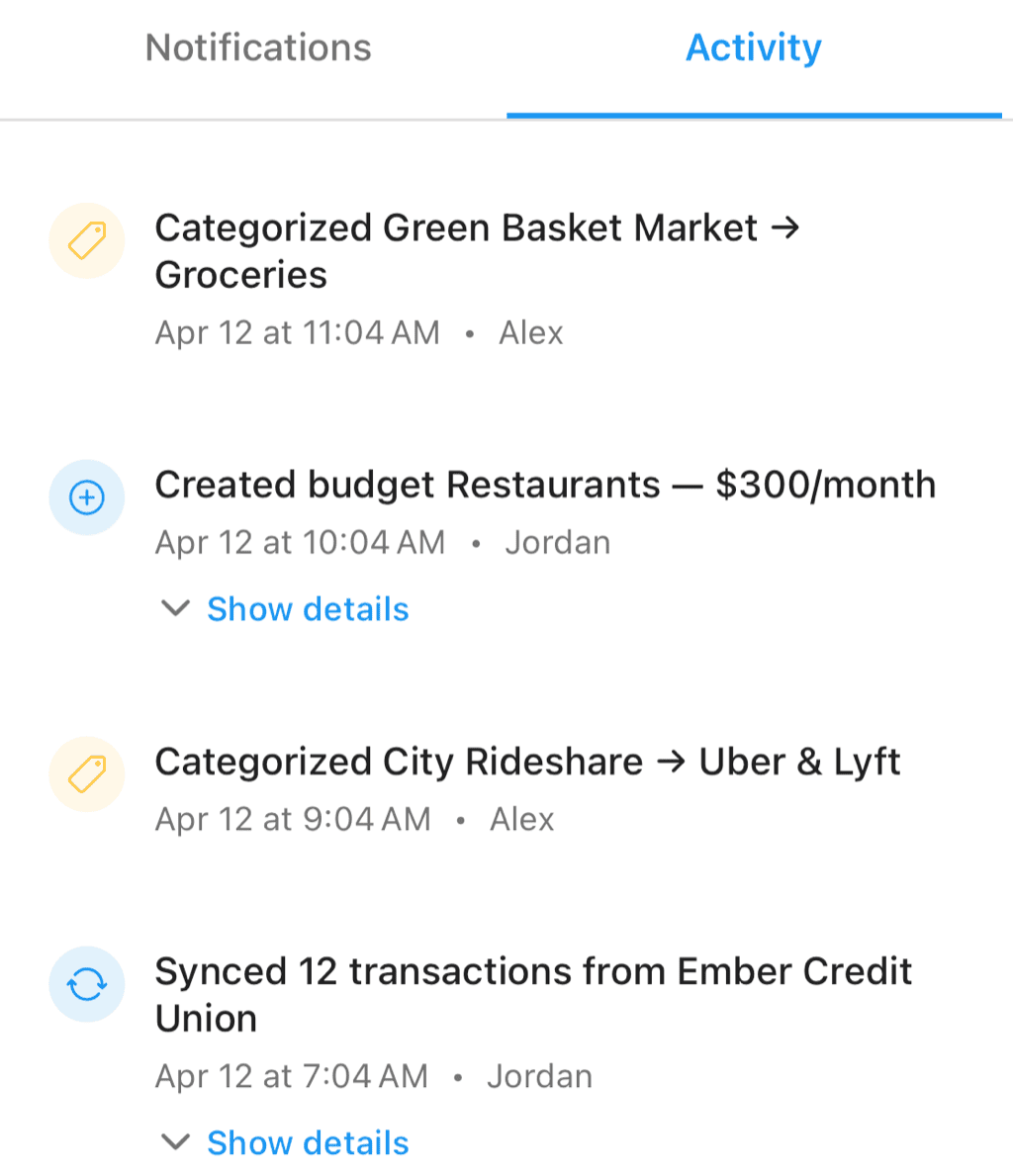
Activity from multiple workspace members — categorizations, budgets, and syncs
What's Tracked
Transaction Activity
- Added - New manual transactions
- Edited - Changed amount, date, merchant
- Categorized - Category assignments
- Tagged - Tags added or removed
- Deleted - Removed transactions
Account Activity
- Connected - New account connections
- Disconnected - Account removals
- Renamed - Account nickname changes
Organization Activity
- Categories - Created, edited, or deleted
- Tags - Created, edited, or deleted
- Auto-Rules - Created, modified, or deleted
- Rule application - When rules process transactions
Budget Activity
- Created - New budgets
- Modified - Budget amount or period changes
- Deleted - Removed budgets
Membership Activity
- Joined - New members accepted invitations
- Left - Members who left the workspace
- Removed - Members removed by owners
- Role changed - Permission changes
Viewing the Activity Log
Accessing the Log
- Open your workspace
- Go to the "Activity" tab or section
- View recent activity
Activity Feed
The feed shows activities in reverse chronological order:
- Most recent at the top
- Scroll down for older activity
- Each entry shows who, what, and when
Activity Entry Format
Each entry includes:
- Who - Which member performed the action
- What - Description of what changed
- When - Date and time
- Details - Specifics (transaction amount, category name, etc.)
Filtering Activity
By Person
See only one member's activity:
- Open the activity log
- Tap to filter
- Select a specific member
- View their actions
By Type
Filter to specific activity types:
- Transaction changes
- Budget modifications
- Category/tag updates
- Membership changes
By Date Range
View activity from a specific period:
- Today
- This week
- This month
- Custom date range
Understanding Activity
Transaction Edits
When someone edits a transaction:
Sarah edited transaction:
Amazon.com - $52.99
Changed category from "Shopping" to "Office Supplies"
Today at 2:34 PM
Category Changes
When categories are modified:
Mike created category:
"Home Office" under "Shopping"
Yesterday at 10:15 AM
Budget Updates
When budgets change:
Sarah modified budget:
"Groceries" - Changed from $500/month to $600/month
3 days ago
Membership Changes
When people join or leave:
Alex joined as Member
Invited by Sarah
Last week
Using the Activity Log
Staying Informed
In shared workspaces:
- Check activity regularly
- See what others have done
- Stay aligned on changes
Finding Changes
If something looks different:
- Check the activity log
- Find who made the change
- Understand the context
Tracking Patterns
Over time, activity shows:
- Who's most active
- What types of changes happen
- When activity peaks
Coordination
Use activity to coordinate:
- See that someone already categorized transactions
- Avoid duplicate work
- Know what's been done
Activity and Notifications
Activity vs. Notifications
- Activity log - Complete record of all changes
- Notifications - Alerts for important events you should know about
Not everything in activity triggers notifications. The log is comprehensive; notifications are selective.
Notification Settings
Configure which activities trigger notifications:
- New member joined
- Large transaction added
- Budget exceeded
Privacy in Activity
What's Visible
All workspace members can see:
- All activities in the log
- Who performed each action
- Details of changes
Transparency
This transparency is intentional:
- Accountability for changes
- Clear record of history
- No hidden modifications
Personal Activity
Your personal workspaces also have activity logs:
- Only you see them
- Useful for your own records
- Track your history
Retention
How Long Activity Is Kept
Activity records are retained:
- As long as the workspace exists
- Older activity may archive
- Important events are always kept
Deleted Items
When transactions or other items are deleted:
- The deletion is recorded
- You can see what was deleted
- Original details are preserved in the log
Best Practices
Regular Review
Check the activity log periodically:
- Weekly for active workspaces
- After major changes
- When something seems different
Communication
Use activity to prompt discussion:
- "I noticed you changed the category for X..."
- "Should we update the budget for Y?"
- "Thanks for adding those transactions"
Learning
Activity shows patterns:
- How others organize transactions
- Category conventions being used
- Workflow preferences
Troubleshooting with Activity
Finding When Something Changed
If data looks wrong:
- Open activity log
- Filter to relevant type
- Find the change
- See who made it and when
Reverting Changes
Activity doesn't provide automatic undo, but:
- See what the previous value was
- Manually restore if needed
- Know the context
Understanding Auto-Rule Effects
When auto-rules run:
- Activity shows which transactions were affected
- What changes were made
- Rule that triggered it
Related Features
- Workspaces - Shared workspace management
- Roles & Permissions - Who can do what
- Push Notifications - Get alerted to important activity
- Auto-Rules - Automated changes that appear in activity