Tags
Tags let you add additional context to transactions beyond their category. Unlike categories (one per transaction), you can add multiple tags to capture different dimensions of each transaction.
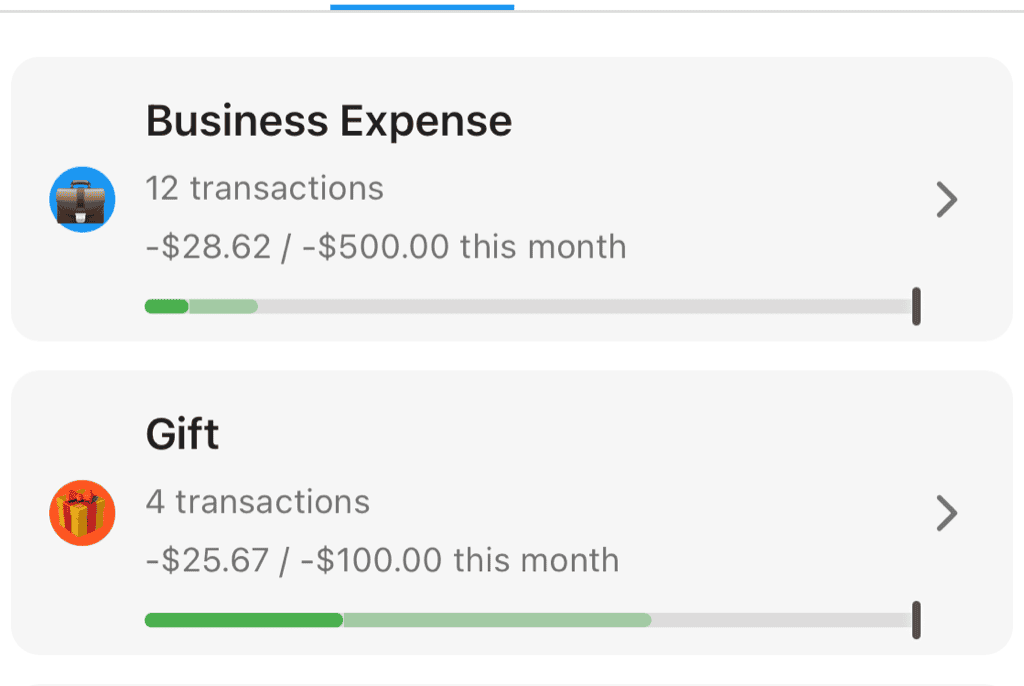
Tags with icons, transaction counts, and optional budget progress
Why Use Tags?
Categories answer "what type of expense is this?" Tags answer "what else is relevant?"
Example Scenarios
Tracking a project:
- Category: Various (Supplies, Services, Travel)
- Tag: "Home Renovation"
- Result: See all renovation expenses across categories
Splitting expenses with someone:
- Category: Various (Dining, Entertainment, Travel)
- Tag: "Shared with Sarah"
- Result: Easily find what you owe or are owed
Business vs. personal:
- Category: Various (normal categories)
- Tag: "Business Expense" or "Reimbursable"
- Result: Separate business spending for taxes/reimbursement
Tracking a goal:
- Category: Various
- Tag: "Wedding Fund" or "Emergency Fund Related"
- Result: See spending related to specific goals
How Tags Work
Multiple Tags Per Transaction
A single transaction can have as many tags as needed:
- Transaction: $45 at Home Depot
- Category: Home & Garden
- Tags: "Home Renovation", "Tax Deductible", "Reimbursable"
Tags Are Flat
Unlike categories, tags don't have parent-child relationships. Each tag is independent, which makes them more flexible but less structured.
Tags Are Optional
Not every transaction needs tags. Use them when you need additional tracking beyond categories.
Managing Tags
Viewing All Tags
Access your tag list from Settings → Tags to see:
- All your tags
- Transaction count per tag
- Colors and metadata
- Edit and organize options
Creating a Tag
- Go to Settings → Tags
- Tap "Add Tag"
- Enter a name
- Choose a color (optional)
- Choose an icon character (optional)
- Save
You can also create tags on-the-fly when tagging a transaction.
Editing a Tag
- Go to Settings → Tags
- Tap the tag to edit
- Modify name, color, or icon
- Save
Changes apply to all transactions with that tag.
Deleting a Tag
- Go to Settings → Tags
- Tap the tag to delete
- Confirm deletion
The tag is removed from all transactions. This doesn't affect the transactions themselves.
Tag Properties
Colors
Assign colors to tags for visual distinction:
- In transaction lists
- In filter interfaces
- In reports
Icon Characters
Tags can have a single character or emoji as an icon:
- Quick visual identification
- Appears alongside the tag name
- Examples: "$" for money-related, "🏠" for home, "✈️" for travel
Tagging Transactions
Adding Tags Manually
- Open a transaction
- Tap the Tags section
- Select existing tags or create new ones
- Save
Quick Tagging
From the transaction list:
- Tap the tag indicator on a transaction
- Add or remove tags
- Changes save immediately
Bulk Tagging with Rules
Use Auto-Rules to tag transactions automatically:
- Create a rule matching target transactions
- Set "Add Tag" as the action
- Apply to existing transactions and/or future ones
Example rule: "When merchant contains 'ACME CORP' → Add tag 'Client: Acme'"
Tags and Budgets
Tags integrate with budgeting for flexible spending limits:
Tag Budgets
Set spending limits based on tags:
- $500/month for "Business Expenses"
- $1000/month for "Home Renovation"
- $200/month for "Date Night"
This works independently of category budgets, giving you cross-cutting budget views.
Overlapping Budgets
Since transactions can have multiple tags, they can count toward multiple tag budgets:
- Transaction: $50 dinner
- Tags: "Date Night", "Downtown"
- Counts toward: Both "Date Night" budget AND "Downtown" budget
This is different from categories, where a transaction only counts toward one category budget.
Tags in Reports
Filtering
Use tags to filter any report or transaction view:
- Show only "Business Expense" transactions
- Exclude "Reimbursable" from spending totals
- Compare "Personal" vs "Business" spending
Explorer
The Explorer supports tag-based analysis:
- Group by tag to see spending per tag
- Filter by tags to focus on specific transactions
- Combine with category filters for detailed views
Cash Flow
The Cash Flow report can be filtered by tags, showing income and expenses for just the tagged transactions.
Common Tag Strategies
Project Tracking
Create tags for specific projects or goals:
- "Home Renovation"
- "Wedding"
- "Vacation 2024"
- "New Car Fund"
Track total spending on each project across all categories.
People/Splitting
Track shared expenses or who paid:
- "Shared with [Name]"
- "Owed by [Name]"
- "Paid for [Name]"
Makes it easy to settle up with roommates or partners.
Tax Categories
Mark deductible or reportable expenses:
- "Tax Deductible"
- "Business Expense"
- "Medical Expense"
- "Charitable"
Simplifies tax preparation.
Location-Based
Track spending by location:
- "Downtown"
- "Near Work"
- "Vacation - Italy"
Understand geographic spending patterns.
Temporary Tracking
Create temporary tags for short-term tracking:
- "This Month's Impulse Buys"
- "Trial Subscriptions"
- "Gift Ideas"
Delete when no longer needed.
Tags vs. Categories
| Aspect | Categories | Tags |
|---|---|---|
| Per transaction | Exactly one | Zero or more |
| Structure | Flat | Flat |
| Assignment | AI + manual | Manual or rules |
| Primary purpose | Expense type classification | Flexible additional context |
| Budget integration | Category budgets | Tag budgets |
Use categories for: What type of expense is this? Use tags for: What else matters about this transaction?
Auto-Rules for Tags
Auto-Rules can automatically add tags:
Rule Actions for Tags
- Add tag - Adds a specific tag to matching transactions
- Add tags - Adds multiple tags at once
Example Rules
"All Amazon purchases over $100 → Add tag 'Large Purchase'"
- Condition: Merchant contains "AMAZON" AND Amount < -100
- Action: Add tag "Large Purchase"
"All restaurant transactions → Add tag 'Dining Out'"
- Condition: Category equals "Restaurants"
- Action: Add tag "Dining Out"
"All transactions from work reimbursement account → Add tag 'Reimbursable'"
- Condition: Account equals "[Work Card]"
- Action: Add tag "Reimbursable"
Related Features
- Categories - Primary transaction classification
- Auto-Rules - Automate tagging
- Creating Budgets - Tag-based spending limits
- Explorer - Analyze spending by tags