Categories
Every transaction in Curl Budget belongs to a category. Categories help you understand where your money goes and track spending against budgets. Curl Budget uses AI to categorize transactions automatically, but you always have control.
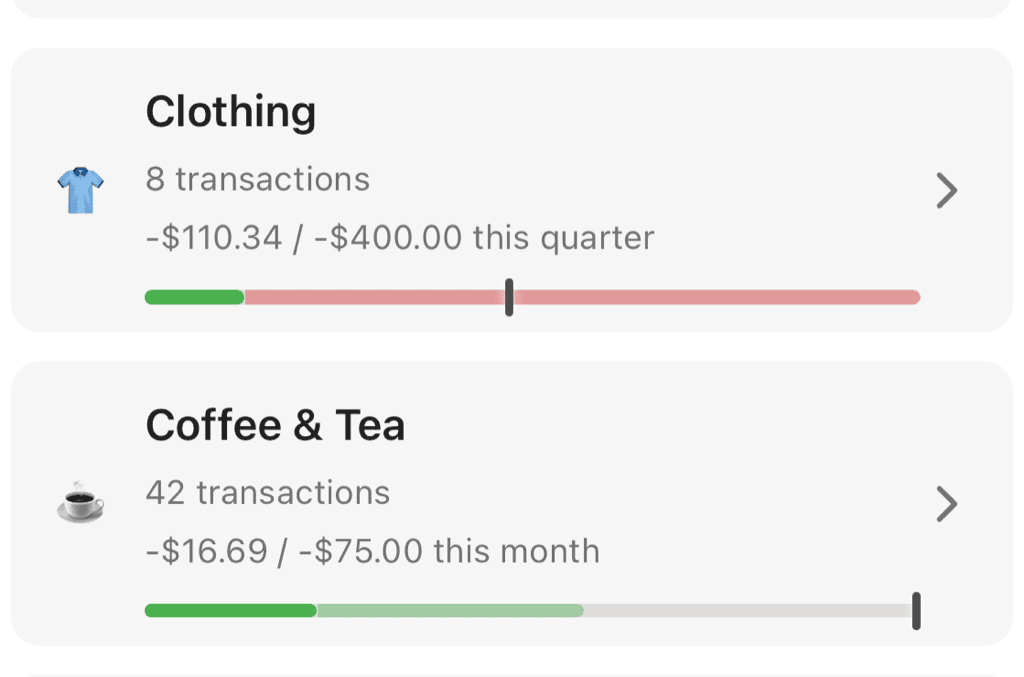
Categories with icons, transaction counts, and budget progress bars
How Categories Work
One Category Per Transaction
Each transaction has exactly one category. This makes spending totals clear and unambiguous—a restaurant bill is either "Dining" or "Entertainment," not both.
If you need to track multiple dimensions (like a work dinner that's both dining and a business expense), use tags alongside categories.
Built-in Categories
Curl Budget includes common categories to get you started:
- Food & Dining - Restaurants, groceries, coffee shops
- Shopping - Retail, online purchases, clothing
- Transportation - Gas, parking, rideshare, transit
- Entertainment - Movies, streaming, games, events
- Bills & Utilities - Rent, electricity, internet, phone
- Health - Doctor, pharmacy, gym, wellness
- Travel - Flights, hotels, vacation expenses
- Personal Care - Haircuts, cosmetics, spa
- Education - Courses, books, supplies
- Gifts & Donations - Presents, charitable giving
You can customize these, add your own, or create a completely different structure.
AI-Powered Categorization
When transactions sync, Curl Budget's AI automatically assigns categories based on:
- Merchant name - "Starbucks" → Coffee Shops
- Transaction description - Context clues in the bank description
- Plaid categorization - Initial hints from your bank
- Your history - Learning from your manual corrections
Categorization Confidence
The AI assigns categories with varying confidence:
- High confidence - Clear merchant match, consistent with your history
- Medium confidence - Good guess based on available data
- Low confidence - Unclear transaction, uses best available option
You can focus review time on lower-confidence categorizations if you want perfect accuracy.
Learning From Corrections
When you manually recategorize a transaction, Curl Budget learns:
- Future transactions from that merchant may use your chosen category
- Auto-Rules can codify your preferences explicitly
Managing Categories
Viewing All Categories
Access your category list from Settings → Categories to see:
- All categories and subcategories
- Transaction counts per category
- Icons and colors
- Edit and organize options
Creating a Category
- Go to Settings → Categories
- Tap "Add Category"
- Enter a name
- Optionally select a parent category (to make it a subcategory)
- Choose an icon and color
- Save
Editing a Category
- Go to Settings → Categories
- Tap the category to edit
- Modify name, icon, color, or parent
- Save
Changes apply to all transactions in that category.
Deleting a Category
- Go to Settings → Categories
- Tap the category to edit
- Tap "Delete"
- Choose how to handle existing transactions:
- Move to another category
- Move to Uncategorized
Subcategories are moved to the parent level if you delete a parent category.
Reordering Categories
Drag categories to reorder them. The order affects how categories appear in:
- Category selection lists
- Reports and charts
- Budget views
Category Properties
Icons
Each category can have a custom icon (from the Ionicons library). Icons appear:
- In transaction lists
- On category selection screens
- In reports and charts
Choose icons that help you quickly identify categories visually.
Colors
Assign colors to categories for:
- Visual distinction in charts
- Quick identification in lists
- Aesthetic organization
Income Categories
Mark a category as "Income" to:
- Exclude it from expense totals
- Show it in the income section of Cash Flow reports
- Prevent it from affecting expense budgets
Common income categories:
- Salary/Wages
- Freelance Income
- Investment Returns
- Refunds/Reimbursements
Uncategorized
Transactions that can't be automatically categorized go to "Uncategorized." This is a special category that:
- Can't be deleted
- Serves as a catch-all
- Should be reviewed periodically to ensure accuracy
A high count of uncategorized transactions suggests you might need more specific Auto-Rules.
Categorizing Transactions
Quick Categorization
From any transaction list:
- Tap the category badge on a transaction
- Select a new category from the list
- The change saves immediately
Bulk Categorization
To categorize multiple similar transactions:
- Create an Auto-Rule matching those transactions
- Apply the rule to existing transactions
- Future matches are categorized automatically
Category History
When you view a transaction, you can see:
- Current category
- Who/what assigned it (AI, rule, or manual)
- When it was last changed
Categories and Budgets
Categories integrate directly with budgeting:
Category Budgets
Set spending limits for any category:
- $500/month for Groceries
- $200/month for Entertainment
- $100/month for Coffee Shops
See Creating Budgets for details.
Subcategory Rollup
When you set a budget on a parent category, spending from all subcategories counts toward it:
- Budget: $800/month for "Food & Dining"
- Includes: Restaurants + Groceries + Coffee Shops + Delivery
Multiple Budgets
You can have budgets on both parent and child categories:
- Parent: $800/month for "Food & Dining"
- Child: $200/month for "Restaurants" (stricter limit on dining out)
Both budgets track independently.
Categories in Reports
Cash Flow Report
The Cash Flow report uses categories to separate:
- Income (from income-marked categories)
- Expenses (from expense categories)
Explorer
The Explorer lets you:
- Group by category
- Filter by specific categories
- Drill down from parent to subcategories
- See spending trends by category over time
Tips for Effective Categorization
Start Simple
Begin with broad categories. You can always add subcategories later as you want more detail.
Use the AI
Let automatic categorization handle most transactions. Only create rules for recurring mistakes.
Review Periodically
Check "Uncategorized" weekly to catch transactions the AI missed.
Be Consistent
Pick a categorization philosophy and stick with it. Inconsistent categorization makes reports less meaningful.
Related Features
- Tags - Add additional context beyond categories
- Auto-Rules - Automate categorization
- Creating Budgets - Track spending by category
- Explorer - Analyze spending by category