Transfer Detection
When you move money between your own accounts, it's not really spending or income—it's just the same money in a different place. Curl Budget automatically detects these transfers and groups them together so they don't distort your financial picture.
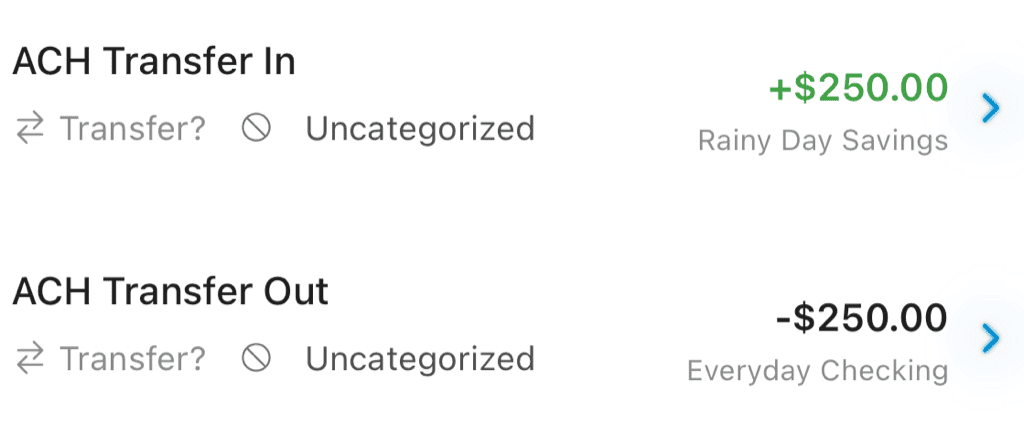
A matched transfer pair — $250 out of Checking, $250 into Savings
Why Transfers Matter
Without transfer detection, moving $500 from checking to savings would show up as:
- $500 expense (leaving checking)
- $500 income (arriving in savings)
This would make your spending look $500 higher than it actually is. Transfer detection recognizes that these two transactions are the same money, groups them together, and excludes them from your spending and income totals.
How Detection Works
Curl Budget looks for transaction pairs that match specific patterns:
Matching Criteria
For two transactions to be matched as a transfer:
- Opposite amounts - One positive (inflow), one negative (outflow) of the same value
- Different accounts - The transactions must be in different accounts (both connected to your workspace)
- Within 30 days - Transfers typically settle within a few days, but we allow up to 30 days for delays
- Matches heuristics or rules - Either matches common transfer keywords or your custom rules
Keyword Heuristics
Curl Budget recognizes common transfer-related terms in transaction descriptions:
- "Transfer", "Xfer", "Trnsfr"
- "ACH", "Wire"
- "Internal", "Move"
- "Payment to/from" (for credit card payments)
When a transaction contains these keywords and has a matching opposite transaction, they're grouped as a transfer.
Transfer Groups
When Curl Budget detects a transfer, it creates a transfer group containing exactly two transactions:
- From transaction - The outflow (negative amount)
- To transaction - The inflow (positive amount)
Both transactions remain in your account history, but they're visually linked and excluded from spending/income calculations.
Viewing Transfer Groups
When you view a transaction that's part of a transfer:
- You'll see a "Transfer" indicator
- Tapping shows the linked transaction
- The transfer pair is highlighted together
Manual Overrides
Sometimes automatic detection gets it wrong. You have full control:
Marking as Transfer
If Curl Budget missed a transfer, you can manually link two transactions:
- Open either transaction
- Tap "Mark as Transfer"
- Select the matching transaction from the list
Marking as Not a Transfer
If Curl Budget incorrectly grouped two transactions:
- Open the transaction
- Tap "Not a Transfer"
- The transactions are ungrouped and count normally
Override Priority
Your manual decisions always take priority:
- Manual override - Your explicit "is transfer" or "not transfer" marking
- Auto-rules - Rules you've created for transfer detection
- Heuristics - Automatic keyword-based detection
Using Auto-Rules for Transfers
For recurring transfers that aren't automatically detected, create an Auto-Rule:
- Go to Settings → Auto-Rules
- Create a new rule
- Set conditions to match the transaction (merchant name, amount range, etc.)
- Choose "Mark as Transfer" as the action
This ensures future similar transactions are automatically handled.
Transfer Exclusion Rules
You can also create rules to prevent specific transactions from being marked as transfers:
- Create an Auto-Rule
- Match the transactions you want to exclude
- Choose "Exclude from Transfer Detection" as the action
This is useful for recurring payments that look like transfers but aren't (e.g., rent payments to a property management company).
Impact on Reports
Transfer detection directly affects your financial reports:
Cash Flow Report
Transfers are excluded from the Cash Flow report. This means:
- Moving money between accounts doesn't inflate your expense totals
- Credit card payments don't count as spending
- Your true income and expenses are clearly visible
Budget Tracking
Transfers don't count toward any budgets. Moving money to savings doesn't affect your grocery budget.
Transaction Explorer
In the Explorer, you can choose to include or exclude transfers when drilling down into your spending.
Common Transfer Types
Credit Card Payments
When you pay your credit card from checking:
- Checking shows: "Payment to Credit Card" (-$500)
- Credit Card shows: "Payment Thank You" (+$500)
These are automatically detected and grouped.
Savings Transfers
When you move money to savings:
- Checking shows: "Transfer to Savings" (-$200)
- Savings shows: "Transfer from Checking" (+$200)
Investment Contributions
When you fund an investment account:
- Checking shows: "ACH Debit - Brokerage" (-$1,000)
- Investment shows: "Incoming Transfer" (+$1,000)
Troubleshooting
Transfer Not Detected
If a transfer isn't being detected automatically:
- Check timing - Both transactions need to be synced (within 30 days of each other)
- Check amounts - They must be exact matches (same dollar and cent amount)
- Check accounts - Both accounts must be connected to your workspace
- Manual link - You can always manually mark transactions as a transfer
False Positives
If non-transfers are being grouped:
- Mark as not transfer - Override the automatic detection
- Create exclusion rule - Prevent future false matches
- Check keywords - The description may contain transfer-related words
Running Detection Manually
While transfer detection runs automatically during syncs, you can trigger a manual scan to apply your transfer rules immediately or catch transfers that may have been missed.
How to Run
- Go to Settings → Auto-Rules
- Tap the menu icon (⋮)
- Select "Run Transfer Detection"
What Happens
- Scans all transactions for potential transfer pairs
- Applies your active transfer rules
- Uses automatic heuristics for additional matching
- Shows a summary of detected transfers when complete
When to Use
After creating transfer rules: If you've just created a new transfer rule and want it applied immediately to existing transactions, run detection manually instead of waiting for the next sync.
After importing transactions: CSV imports or historical data may include transfers. Manual detection helps identify matching pairs across accounts.
After connecting new accounts: When you add a new account, there may be historical transfers between it and your existing accounts that weren't detected because only one side was visible before.
Periodic cleanup: If transfers aren't being detected due to timing (transactions syncing on different days), a manual scan can find matches that automatic detection missed.
Related Features
- Auto-Rules - Create custom transfer detection rules
- Cash Flow Report - See spending without transfer distortion
- Duplicate Detection - Different from transfers—actual duplicate transactions
- Funding Detection - Special handling for P2P app funding