Budgeting
Budgets help you set spending limits and track your progress. Curl Budget's flexible budgeting system lets you create budgets based on categories, tags, or both—matching how you actually think about your money.
Budgeting Philosophy
Curl Budget takes a practical approach to budgeting. You can track your spending without adopting a formal budgeting system — just set budgets on the categories you want to watch. But if you want to track every dollar, you can switch to All Budgets mode for full envelope-style budgeting.
- Flexible periods - Monthly, quarterly, or yearly budgets to match your spending patterns
- Category and tag budgets - Track spending by expense type or by project/goal
- Progress tracking - See how much you've spent and how much remains
- Alerts - Get notified before you overspend
- Filter-aware - Budgets adapt intelligently when you apply filters
- Envelope budgeting - Assign every dollar with All Budgets mode
How Budgets Work
Setting a Limit
Create a budget by specifying:
- What to track - A category or tag
- How much - The spending limit
- How often - The budget period (monthly, quarterly, yearly)
Tracking Progress
As transactions sync, Curl Budget calculates:
- Spent - Total spending in the budget category/tag
- Remaining - How much of your budget is left
- Percentage - How far through your budget you are
- Daily allowance - How much you can spend per day for the rest of the period
Budget Dashboard
Your budget dashboard shows all active budgets with:
- Visual progress bars
- Spent vs. limit amounts
- Days remaining in the period
- Warnings for budgets approaching limits
Budget Types
Category Budgets
Set limits based on categories:
- $500/month for Groceries
- $200/month for Entertainment
- $150/month for Dining Out
Category budgets track all transactions in that category, including subcategories.
Tag Budgets
Set limits based on tags:
- $1,000/month for Business Expenses
- $2,500/quarter for Home Renovation
- $500/month for Date Nights
Tag budgets track all transactions with that tag, regardless of category.
Combining Budgets
You can have both category and tag budgets simultaneously:
- Category budget: $800/month for Food & Dining
- Tag budget: $300/month for Date Nights
A romantic dinner might count toward both budgets since it's in the Dining category AND has the Date Night tag.
Budget Periods
Curl Budget supports flexible budget periods:
Monthly Budgets
The most common type. Resets at the start of each month.
- Best for: Regular recurring expenses (groceries, entertainment, dining)
- Period: Calendar month
Quarterly Budgets
Resets every three months. Useful for less frequent expenses.
- Best for: Seasonal spending, quarterly subscriptions
- Period: Jan-Mar, Apr-Jun, Jul-Sep, Oct-Dec
Yearly Budgets
For annual spending limits.
- Best for: Vacation funds, large purchase categories, annual subscriptions
- Period: Calendar year
Key Features
Progress Visualization
Each budget shows a visual progress bar that helps you understand your spending at a glance:
Reading the Progress Bar
The budget progress bar has two parts:
- Solid portion - Your actual spending so far
- Faded portion - Projected additional spending based on your current rate
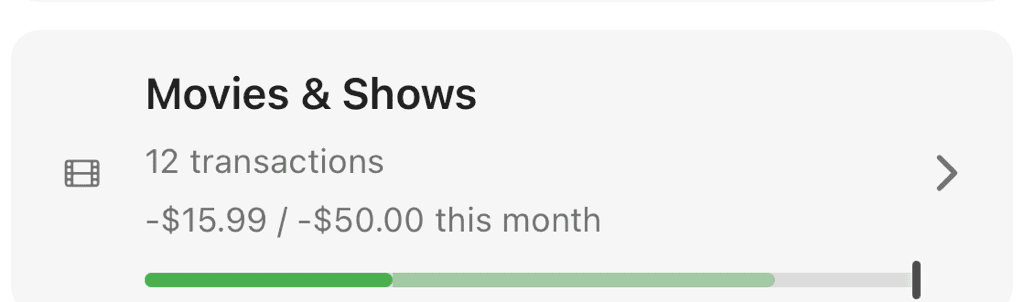
Green = actual spending, faded = projected at current rate, vertical line = budget limit
Spending Projection
Curl Budget predicts your end-of-period spending by analyzing your daily spending rate:
- If you've spent 50% of your budget halfway through the month, you're projected to hit exactly 100%
- If you've spent 80% with half the month left, you're projected to reach 160%
- The projection updates daily as you spend, giving you time to adjust
The projection formula: projected = (current_spending / days_elapsed) × total_days_in_period
In the example below, the Restaurants budget is $300/month. Actual spending (green) is $133.97 — well under the limit. But based on the current daily rate, spending is projected (yellow) to exceed the budget by month's end. The vertical budget line marker shows where 100% falls within the projected bar.
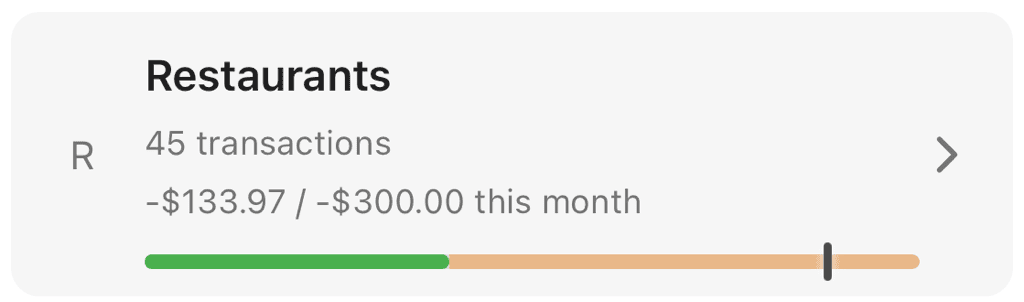
Yellow projection extends past the budget line — spending is on pace to exceed the $300 limit
Color Coding
The bar color indicates your budget status based on whichever is higher—your actual spending or projected spending:
- Green - Under budget (100% or less)
- Yellow - Slightly over budget (100-110%)
- Red - Significantly over budget (above 110%)
This early warning system alerts you when you're on track to overspend, even if you haven't exceeded the budget yet.
Budget Line Marker
When your spending exceeds your budget (actual or projected), a vertical line appears showing where your 100% budget limit falls. This helps you visualize how far over budget you are.
Percentage Display
The exact percentage of budget used is always displayed, allowing you to track your progress precisely
Daily Allowance
Curl Budget calculates how much you can spend per day to stay on budget:
- Based on remaining budget and days left
- Updates in real-time as you spend
- Helps pace your spending throughout the period
Implied Budgets
When you filter your view (by account, category, or tag), budgets intelligently adjust:
- Shows the portion of the budget relevant to your filter
- Indicates uncertainty when exact allocation is unknown
- Maintains accuracy in Cash Flow reports
Budget Alerts
Get notifications when:
- You're approaching your budget limit (configurable threshold)
- You've exceeded your budget
- Your daily allowance changes significantly
What Counts Toward Budgets
Included
- Transactions in the budget's category (for category budgets)
- Transactions with the budget's tag (for tag budgets)
- Subcategory transactions (roll up to parent category budgets)
- Posted and pending transactions
Excluded
- Transfers between your accounts
- Income categories (positive amounts)
- Duplicates that are hidden
- Transactions outside the budget period
Budget Strategies
Essential vs. Discretionary
Create budgets for spending you want to control:
Essential (monitor but may be flexible):
- Groceries: $600/month
- Transportation: $300/month
- Utilities: $200/month
Discretionary (strict limits):
- Dining Out: $200/month
- Entertainment: $150/month
- Shopping: $300/month
Zero-Based / Envelope Approach
Budget every dollar using All Budgets mode:
- Set budgets on your income categories
- Create budgets for all spending categories
- Switch to All Budgets in the Explorer
- Get "To Be Budgeted" to zero — every dollar assigned
- Adjust as you learn your patterns
Focus Areas
Budget only where you want to improve:
- Identify categories where you overspend
- Create budgets just for those areas
- Leave other categories unbudgeted
Project Budgets
Use tag budgets for specific goals:
- Home Renovation: $5,000 (total)
- Wedding: $15,000 (total)
- Vacation Fund: $200/month
Getting Started
- Start with one or two budgets - Pick your biggest spending areas
- Set realistic limits - Look at past spending before setting limits
- Review weekly - Check progress regularly
- Adjust as needed - Budgets should evolve with your lifestyle
See Creating Budgets for step-by-step instructions.
Related Features
- Categories - The basis for category budgets
- Tags - The basis for tag budgets
- Cash Flow Report - See budgets in context of overall finances
- Push Notifications - Get budget alerts