Duplicate Detection
Sometimes the same transaction appears more than once in your accounts. This can happen due to bank reporting quirks, pending-to-posted transitions, or data import issues. Curl Budget automatically detects these duplicates and lets you control which copy to display.
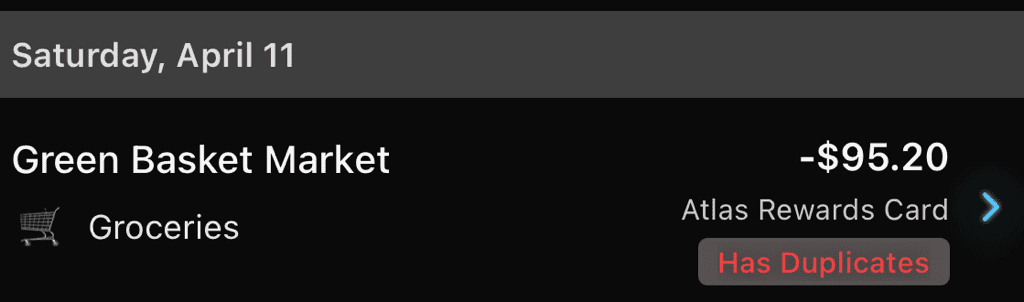
Transactions with duplicates show a "Has Duplicates" badge
Why Duplicates Happen
Duplicate transactions can appear for several reasons:
- Pending and posted versions - A charge appears as "pending" and later as "posted," but your bank reports both
- Bank corrections - A transaction is adjusted and the original remains visible
- Import overlap - When reconnecting an account, some transactions may be imported again
- Multi-institution accounts - The same card appearing through different bank connections
How Detection Works
Curl Budget identifies duplicates by looking for transactions that match on all of these criteria:
Matching Criteria
For two transactions to be detected as duplicates:
- Exact same amount - Down to the cent
- Same transaction time - The timestamp must match exactly
- Same merchant - The Plaid merchant identifier matches
- Same institution and account - From the same underlying account
- Same original description - The raw description from your bank matches
This strict matching ensures only true duplicates are grouped—not similar transactions that are actually separate purchases.
Pending vs. Posted
A key feature of duplicate detection is that pending status is ignored. This means:
- A pending charge and its posted version are detected as duplicates
- You see one transaction instead of both
- When the posted version arrives, it automatically replaces the pending one
Duplicate Groups
When duplicates are detected, they form a duplicate group:
- One transaction is marked as shown (visible in your transaction list)
- Other copies are marked as hidden (still in your data, but not displayed)
- You can change which transaction is shown at any time
Viewing Duplicate Groups
When you view a transaction that has duplicates:
- You'll see a "Duplicates" indicator showing how many copies exist
- Tapping reveals all transactions in the group
- You can see details of each duplicate and choose which to show
Managing Duplicates
You have full control over how duplicates are handled:
Changing Which Transaction Shows
If you prefer to display a different copy:
- Open the transaction with duplicates
- Tap to view the duplicate group
- Select "Show This One" on your preferred transaction
- The previous one becomes hidden
Excluding a Transaction
If a transaction was incorrectly grouped as a duplicate:
- Open the transaction
- Tap to view the duplicate group
- Select "Exclude" on the transaction that's not really a duplicate
- It will be removed from the group and appear separately
Including a Transaction
If you previously excluded a transaction and want to re-add it:
- Open any transaction in the duplicate group
- Tap "Include Previously Excluded"
- Select the transaction to bring back into the group
Automatic Selection
When duplicates are first detected, Curl Budget automatically chooses which transaction to show based on:
- Posted over pending - Posted transactions are preferred
- Most recent - If both have the same status, the most recently synced is shown
- Existing category - If you've already categorized one, that one is preserved
Notifications
When new duplicates are detected, you can receive a notification:
- Duplicate Alert - Informs you that potential duplicates were found
- Tap the notification to review and manage the duplicate group
You can configure these alerts in your notification settings.
Impact on Reports
Duplicate detection ensures accurate financial data:
Spending Totals
Only the shown transaction in each duplicate group counts toward:
- Cash Flow reports
- Budget tracking
- Category spending totals
Transaction Counts
Your transaction counts reflect unique transactions, not duplicate entries.
Duplicates vs. Other Detection Types
Duplicates vs. Transfers
- Duplicates are the same transaction appearing multiple times
- Transfers are two different transactions (one in, one out) representing money movement
A credit card payment appears as two transactions (one per account) but they're transfers, not duplicates.
Duplicates vs. Double Charges
- Duplicates are the same transaction reported multiple times by your bank
- Double charges are actually separate charges that may indicate fraud
If a merchant charged you twice, those are double charges. If your bank reported the same charge twice, that's a duplicate.
Troubleshooting
Duplicate Not Detected
If you believe transactions are duplicates but they weren't grouped:
- Check amounts - They must match exactly
- Check timestamps - They must have the same time
- Check merchants - The bank's merchant identifier must match
- Different pending/posted descriptions may prevent matching
For transactions that aren't automatically detected, you can manually categorize or hide them.
Wrong Transactions Grouped
If unrelated transactions were grouped as duplicates:
- Open the transaction
- View the duplicate group
- Exclude the transaction that doesn't belong
This is rare due to strict matching criteria, but can happen if your bank reports identical metadata for different transactions.
Running Detection Manually
While Curl Budget automatically runs duplicate detection during transaction syncs, you can trigger a manual scan whenever needed.
How to Run
- Go to the Transactions screen
- Tap the menu icon (⋮)
- Select "Run Duplicate Detection"
What Happens
- Scans all transactions in your workspace for duplicate patterns
- Uses the same matching criteria as automatic detection
- Shows a notification with results when complete
- Newly detected duplicates are handled per your duplicate preferences
When to Use
After importing transactions: If you've imported transactions via CSV or reconnected an account, run detection to catch any duplicates from the overlap period.
After account reconnection: When you disconnect and reconnect a bank account, some transactions may be re-imported. Manual detection helps identify these.
Periodic cleanup: If you suspect duplicates exist that weren't caught automatically—perhaps due to timing of when transactions synced—a manual scan can help.
Troubleshooting: When investigating transactions that seem like duplicates, running detection manually confirms whether they meet the matching criteria.
Cross-Account Duplicates
Sometimes the same bank account ends up connected twice. This commonly happens when:
- Card replacement after fraud — You close a compromised card, get a replacement, and reconnect it as a new account
- Family members — Two people in the same workspace connect the same joint checking account through separate bank logins
- Bank migrations — Your bank merges with another institution and you re-link during the transition
When this happens, every transaction appears twice — once on each connected account.
Automatic Detection
When you connect a new account, Curl Budget checks whether it matches an existing account in your workspace. If it detects significant transaction overlap — the same amounts, dates, merchants, and descriptions appearing on both accounts — it alerts you immediately.
What You'll See
If pervasive overlap is detected, you'll see an alert after connecting:
"Account [New Account] appears to be the same as [Existing Account] from [Institution]. 47 of 52 transactions appear to be duplicates."
The alert includes a few example duplicate transactions so you can verify the match.
Your Options
- Hide Duplicates — Curl Budget links the accounts and hides the duplicate transactions on the newer account. Only detected duplicates are hidden; any unique transactions on either account remain visible. Future syncs automatically hide new duplicates — you don't have to think about it again.
- Remove Duplicate Account — Takes you to account management where you can disconnect or delete the duplicate account entirely.
- These Aren't the Same — Dismisses the alert. No changes are made.
Linked Accounts
After you choose "Hide Duplicates," the accounts are linked. You'll see a badge on the account screen:
"Linked to [Primary Account Name]"
This link ensures ongoing protection: every time new transactions sync, cross-account duplicate detection runs automatically for linked pairs.
Clearing Linked Status
If you change your mind, you can un-link accounts from the account screen. Tap the linked badge and confirm. This:
- Restores all previously hidden duplicate transactions
- Stops future automatic cross-account detection for this pair
- Does not delete any transactions or modify either account
Unique Transactions Are Preserved
Cross-account duplicate hiding only affects transactions that match on all detection criteria across both accounts. If one account has transactions the other doesn't — different date ranges, unique purchases — those remain fully visible. Your data stays intact.
Related Features
- Double Charge Detection - Catches similar but separate charges
- Transfer Detection - Groups related transactions across accounts
- Push Notifications - Get alerted to new duplicates