Accounts
Curl Budget connects to your financial accounts to automatically import transactions. You can connect bank accounts, credit cards, and investment accounts through secure integrations, or create manual accounts for cash and unsupported institutions.
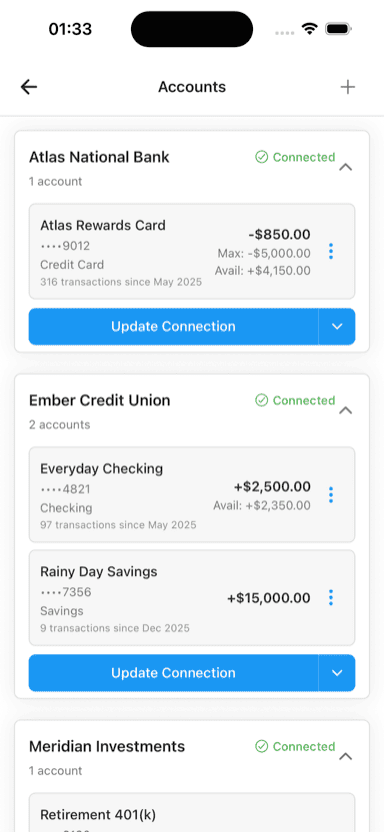
Multiple institutions with checking, savings, credit, and investment accounts
Account Types
Connected Accounts
Accounts that sync automatically:
- Most banks and credit unions
- Credit cards
- Investment accounts
- Automatic transaction sync
- Apple Card
- Apple Cash
- Apple Savings
- Direct integration with Apple Financial services
Manual Accounts
Accounts you manage yourself:
- Cash on hand
- Banks not supported by Plaid
- Foreign accounts
- Any account you want to track manually
Connecting Your First Account
Via Plaid (Most Banks)
- Tap "Add Account"
- Search for your bank
- Log in with your bank credentials
- Select accounts to connect
- Transactions begin syncing immediately
See Plaid Integration for detailed steps.
Via Apple
- Tap "Add Account"
- Select "Apple Accounts"
- Authenticate with Apple ID
- Select accounts to connect
See Apple Accounts for details.
Manual Account
- Tap "Add Account"
- Select "Manual Account"
- Choose account type
- Enter starting balance
- Add transactions manually as needed
See Manual Accounts for details.
Account Information
Each account shows:
Basic Details
- Account name - From your bank or custom name
- Institution - Bank or credit union name
- Account type - Checking, savings, credit card, etc.
- Last 4 digits - Account number ending
Balances
- Current balance - Latest synced balance
- Available balance - For checking/savings
- Credit limit - For credit cards
- Last updated - When balances were last synced
Connection Status
- Connected - Syncing normally
- Needs Attention - Requires action (re-authentication)
- Disconnected - No longer syncing
See Account Health for troubleshooting.
Managing Accounts
Renaming Accounts
Customize account names for clarity:
- Tap the account
- Tap "Edit"
- Enter a new nickname
- Save
The original bank name is preserved for reference.
Hiding Accounts
Hide accounts you don't want to see in lists or reports:
- Tap the account
- Tap "Edit"
- Toggle "Hide this account"
- Save
Hidden accounts:
- Don't appear in transaction lists
- Don't affect reports
- Can be unhidden anytime
- Keep syncing in the background (if connected)
Reordering Accounts
Drag accounts to change their display order:
- Go to Settings → Accounts
- Tap "Edit"
- Drag accounts to reorder
- Save
Disconnecting Accounts
Remove a connected account:
- Tap the account
- Tap "Disconnect"
- Choose whether to keep or delete transaction history
- Confirm
For Plaid accounts, this also revokes Plaid's access to that account.
Account Sync
Automatic Sync
Connected accounts sync automatically:
- When you open the app
- Periodically in the background
- When new transactions are available (via webhooks)
Manual Sync
Force a sync anytime:
- Pull down on the transaction list
- Or tap "Refresh" in account settings
Sync Frequency
Transaction data typically updates:
- Multiple times per day for most banks
- Some institutions update once daily
- Investment accounts may update less frequently
Multiple Accounts
Across Institutions
Connect accounts from multiple banks:
- All transactions appear in a unified view
- Transfers between accounts are detected
- Reports show aggregated data
Same Institution
Connect multiple accounts from one bank:
- Checking and savings
- Multiple credit cards
- Joint and individual accounts
Shared Accounts
For joint accounts:
- Each user connects separately
- Or share one connection in a workspace
- Duplicate detection handles overlaps
Account Security
Plaid Security
- Read-only access (Curl Budget cannot move money)
- Credentials stored by Plaid, not Curl Budget
- Bank-level encryption
- See Bank Connection Security
Apple Security
- Uses your Apple ID
- Two-factor authentication
- No credentials stored by Curl Budget
Data Storage
- Transaction data is encrypted at rest
- Secure transmission (TLS)
- See Data Protection
Troubleshooting
Account Not Syncing
See Account Health for:
- Re-authentication steps
- Connection error resolution
- Refresh issues
Missing Transactions
Check:
- Sync status (pull to refresh)
- Date range filter
- Account isn't hidden
- Transaction isn't pending at your bank
Wrong Account Type
If an account shows as the wrong type:
- Check with your bank—this comes from them
- The type affects how some features work
- Contact support if it's causing issues
Related Features
- Transactions - View transactions from all accounts
- Transfer Detection - Identify transfers between accounts
- Workspaces - Share accounts with others
- Privacy & Security - How your data is protected